

Guide: how to check if your Link cable is silently running at USB 2.0 (and the "flip test")
Many of the stutter, blur and random-disconnect threads here end up being the cable, so here is the checklist I wish I'd had. It takes about 10 minutes and needs nothing extra installed.
Why it matters
A Quest 2/3/3S can do USB 3 (5 Gbps). If the cable or port falls back to USB 2.0 (480 Mbps), Link still connects, it just has much less headroom. In my measurements a normal Link session sends roughly 200 Mbps to the headset. That's about 5% of a USB 3 link, but close to half of a USB 2 bus, and once you add overhead and peaks, that's where stutter and drops come from. Nothing tells you loudly that this happened. It can stay like that for months.
1. Check what speed you actually got
- Meta Horizon Link app > Devices > your headset. An orange dot or "USB 2.0" means you fell back. Run the USB connection test there too.
- For a second opinion: Microsoft's free USB Device Tree Viewer (UsbTreeView) shows the negotiated speed for the "Reality Labs" / Quest device: SuperSpeed = USB 3, High-Speed = USB 2.
2. The flip test (the one that surprised me) A worn or cheap USB-C plug can have one bad set of SuperSpeed contacts. Then it does USB 3 in one orientation and USB 2 in the other, consistently.
- Unplug and replug at the headset 4 to 6 times, flipping the USB-C plug each time.
- Check the speed after every plug-in.
- One orientation always SuperSpeed, the other always High-Speed: that's the cable. Mark the good side, or replace it.
- Both orientations High-Speed with every cable you try: the headset port becomes the suspect (lint, worn contact). Look with a torch and clean gently with a plastic or wooden toothpick, never metal.
- A single flip looks random. Doing it 4 to 6 times in a row is what makes the pattern visible.
3. Port and power
- Use a rear motherboard port, not the front panel, a hub or a monitor's USB ports.
- Device Manager > Universal Serial Bus controllers > every "USB Root Hub (USB 3.0)" > Power Management > untick "Allow the computer to turn off this device to save power".
- Power plan > advanced settings > USB settings > USB selective suspend > Disabled.
4. Is it the cable or the software? When Link drops, listen for the Windows USB disconnect/connect sound.
- Sound: the headset really fell off USB. That means cable, port or power (steps 2 and 3).
- No sound: USB is fine and the Link software hung. Instead of rebooting, restart the OVRService Windows service (Win+R > services.msc > OVRService > Restart, or Restart-Service OVRService in an admin PowerShell). Link comes back in seconds.
5. Want a timeline? Event Viewer > Windows Logs > System shows USB device removals with timestamps, so you can see whether drops follow a pattern. Every few minutes like clockwork points at power saving; drops when you move your head point at the cable or plug.
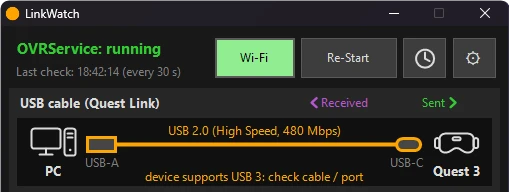
Disclosure: after going through all of this by hand too many times, I wrote a small free Windows tray tool, LinkWatch, that does steps 1, 4 and 5 for you. It shows the negotiated speed live and warns you when the headset falls back to USB 2. It also logs every unplug and speed change with a timestamp, and restarts OVRService with one click. It's a single ~70 KB exe with no installer, driver or telemetry, and the source is on GitHub: https://github.com/Revolando-Ltd/linkwatch. It's a beta, tested on Windows 11 with a Quest 3. Everything above works without it, though.
If you've got another cable trick that worked for you, add it below and I'll update the list.