
New Participant
Oct 30, 2026 1:52 PM UTC

Could someone with a Quest 3 or 3S try my hand-shadow game? Two minutes is enough

Hi all,

I'm entering Hand Shadows in the Gaming track. You hold up your hand, its shadow lands on your real wall in passthrough, and you shape it into animals that fit an outline: a crab, a rabbit, a fox, a dog. It's the old lamp-and-wall game, except it's your own wall and the game checks your shape.
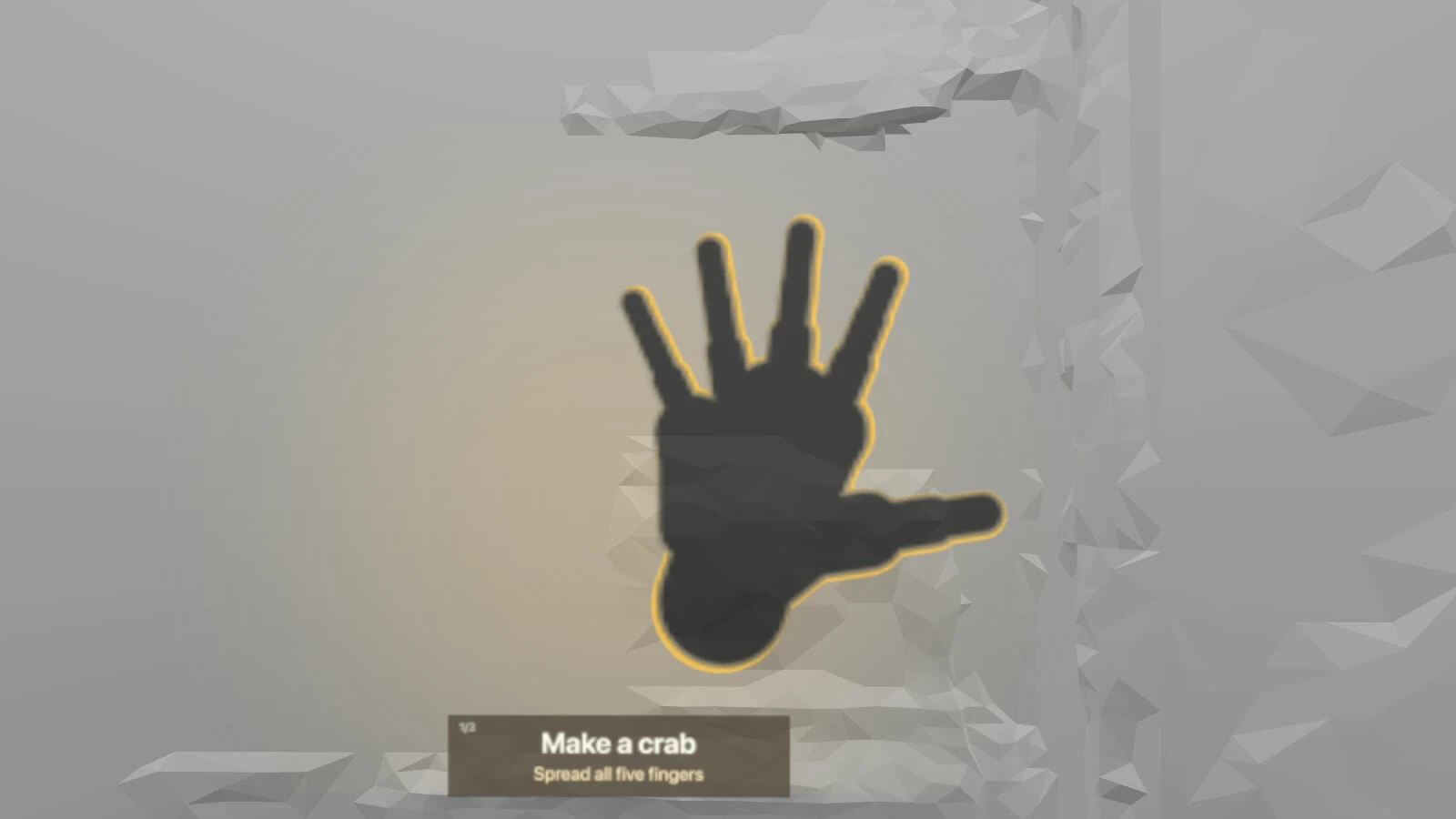
Emulator screenshot, not from a headset: a hand shadow lined up with the crab outline, just before the game counts it.

I don't own a Quest, so I built and tested everything in the Immersive Web Emulator on desktop. It has never run on a real headset.

If you have a Quest 3 or 3S, could you open this in the Quest Browser and tell me what happens? Two minutes gets you to the first animal. The full checklist is about 5 minutes in the headset, plus a few to read first and to reply. Other Quest models are welcome; just say which.

https://hand-shadows.pages.dev/

Here's what I most need a real headset for:

- Does it hold 60 fps or better? A number from an overlay is great, but "felt smooth" or "felt choppy" works too.
- With both hands up in front of you, does a round button (Use paper, Skip) get poked by accident? Are the buttons in a comfortable spot?
- Does the fox count with your hand's normal shake, or do you have to freeze?
- If it can't find your wall, does the paper screen come up and let you keep playing?

You stay seated and use your hands only (controllers down). The checklist and a reply template are in the first reply. Stopping halfway is fine, and even "Nothing happened when I pressed Cast a Shadow" helps.

If you'd like, I'll list your name or forum handle in the thanks section of my Devpost submission, and I'll post here what I changed because of your test. I can also run your WebXR build or watch your demo video in return.

I'm in Korea (UTC+9). Tests before about Nov 12 help most, so I have time to fix things before the Nov 18 deadline.

Thanks!

    2 replies

    arcsolveAuthor
    New Participant
    Oct 30, 2026 1:54 PM UTC

    # Headset test: Hand Shadows (WebXR)

    Thanks for trying this.

    2-minute version: open the link, press Cast a Shadow, try the crab, and tell me your headset and what went wrong. Everything below is a bonus.

    The full test is about 5 minutes in the headset, plus a few minutes to read first and to fill in the reply. Read parts 1 to 3 before you put the headset on, because you can't read this from inside the game. You can stop anywhere, and a half-filled reply still helps. If something breaks, write down the words on screen and where you were.

    What you need

    - A Quest 3 or 3S. Other Quest models are welcome; just tell me which.
    - Hand tracking turned on, and the controllers put down.
    - A bright room and a chair facing a plain wall, not a window.
    - If you already have a performance overlay such as OVR Metrics Tool, turn it on. Please don't install anything just for this.
    - If you have any experimental WebXR flags turned on in the Quest Browser, please mention it in your reply.

    The game's buttons are round discs about 9 cm across. They float in front of your upper chest, well within reach (about 42 cm ahead and 27 cm below eye level), tilted toward your face. You press one by poking it with your index fingertip (no pinch).

    1. Open the link (1 min)

    1. Open this in the Quest Browser: https://hand-shadows.pages.dev/
    2. Optional: if you want to record, start a system recording now (roughly Quest menu > Camera > Record video; the path may differ by OS version). Your room will be in it, so see part 6 first.
    3. Press Cast a Shadow. If the browser asks for permissions, allow them.
    4. If the page says "Could not start. Check that hand tracking is on, then try again." or "Open this page in the Meta Quest Browser.", that is already a useful result. Note it and skip to part 6.

    2. Wall and your shadow (1 min)

    1. When you see "Show both hands", hold both hands up in front of your chest and keep them still through "Hold still…".
    2. About how many seconds does "Looking for a wall…" stay up?
    3. At "That's your shadow!", wiggle your fingers. Is the shadow on your real wall, and does it follow your hand? The game moves on after about 3 seconds.
    4. If no wall turns up within about 4 seconds (or you have no room setup), a paper screen appears about 1.6 m in front of you with the tip "Using a paper screen". Which one did you get?
    5. On a real wall, a round "Use paper" button floats in front of you while "That's your shadow!" is showing. Don't poke it on purpose yet (that's part 5). Did it get pressed by accident while your hands were up, so you ended up on paper? How did the button position feel: too low, too close, too far, or fine?

    3. Three animals (2 min)

    If you have an fps overlay on, glance at it during this part, especially with both hands up and during the success animation. Part 4 asks for the lowest number.

    1. The puzzles come as 1/3, 2/3, 3/3: "Make a crab" (spread all five fingers), "Make a rabbit" (two fingers up, others down), "Make a fox" (index and pinky up, tilt your hand to match). Fit your shadow into the outline and hold it there for about half a second. The animal's name appears when it counts ("Crab!"). Do the rabbit with your left hand. Which ones worked?
    2. The fox is the hardest. Did it count with your hand's normal shake, or did you have to freeze unnaturally? About how many seconds did it take?
    3. Hints get stronger after about 10 and 20 seconds, and a "Skip" button appears after about 35 seconds without progress. Did Skip get pressed while you were only trying a shape?
    4. While an outline is showing, turn your head a little to the left and right (about 30°, not more) and back. Does the outline stay put on the wall, or slide with your view? If you look far to one side for more than a second, the game moves the wall to where you're now facing: a paper screen goes up there at once while it looks for a real wall again. That part is on purpose.
    5. If you see "Turn your palm away", that's the Quest system menu gesture. Turn your palm away from you and carry on.

    After the fox you'll see "Chapter complete!" and "Poke Daily ▶ below". The daily set of 5 is optional; this test only needs the three animals.

    4. Frame rate (30 s)

    The judging criteria ask for at least 60 fps, so this is the number I worry about most.

    - With an overlay: what was the lowest number you saw in part 3?
    - Without one: did it ever feel choppy or stutter?

    5. Paper screen path (30 s, optional)

    1. Leave the way you normally leave a WebXR page (Quest menu). The page shows "Session ended." if you left during the three animals (nothing is saved; you start again at the crab), or "Session ended. Your progress is saved." with a "Continue" button if you finished them.
    2. Go back in. When "That's your shadow!" appears, pull your hand back a little, then poke "Use paper" with one fingertip (it only shows for about 3 seconds). Does a paper screen appear ahead of you, and can you keep playing on it?
    3. If the game never found your wall in part 2: did the paper screen come up by itself, and how long did "Looking for a wall…" stay up?

    6. Wrap up

    1. Leave from the Quest menu and stop the recording if you made one.
    2. Play back a few seconds. Can you see your room, or is the background black?
    3. Your room will be in the clip, so send it only if you're comfortable with that. A screenshot works too. If you'd rather not post the clip publicly, an unlisted video link in your reply is fine. I'll use it for debugging only and won't post it anywhere.
    4. Fill in the template below as far as you got.

    Reply template

    Copy this into a reply and fill in what you can.

    Headset: Quest 3 / Quest 3S / other:
    Horizon OS version:
    Quest Browser version (if you know it):
    Cast a Shadow started the game: yes / no / message I saw:
    Shadow appeared on: real wall / paper screen (came up by itself) / paper screen (I poked Use paper) / nothing
    Seconds of "Looking for a wall...":
    Animals that worked: crab / rabbit / fox / none
    Fox counted with my normal hand shake: yes / no
    Seconds the fox took:
    Had to hold unnaturally still: yes / no
    Buttons pressed by accident (which one, and when): none / Use paper / Skip / other:
    Button position: too low / too close / too far / fine
    Outline stayed on the wall when I turned my head a little: yes / no
    Lowest fps seen, or how it felt: (number) / felt smooth / felt choppy
    Left hand worked: yes / no / didn't try
    Experimental WebXR flags on: yes / no / don't know
    Room visible in the recording: yes / black background / didn't record
    The thing that felt most wrong:
    How to credit you: (name or forum handle) / no credit, please

    Your side of the swap (optional)
    Your link (build, video, or Devpost draft):
    Engine:
    What you want me to check:
    steve40
    Honored Contributor
    Nov 15, 2026 5:22 AM UTC

    It tried but…

    I couldn’t get this app to work reliably in my 3mx3m small office room.

    The shadow outline kept flipping between left and right handed when I was trying to make a shadow.

    My shadow hands appeared to be upside down at times, and made it impossible to make any animal shapes.

    The shadows and outline always appeared to be behind my walls rather than flush with them.

    I had to give up at that point.

    Quest 3, with Navigator 2.10.