

neurodivrgent
Inspiring
July 8, 2024

Meta Quest build v67 release notes
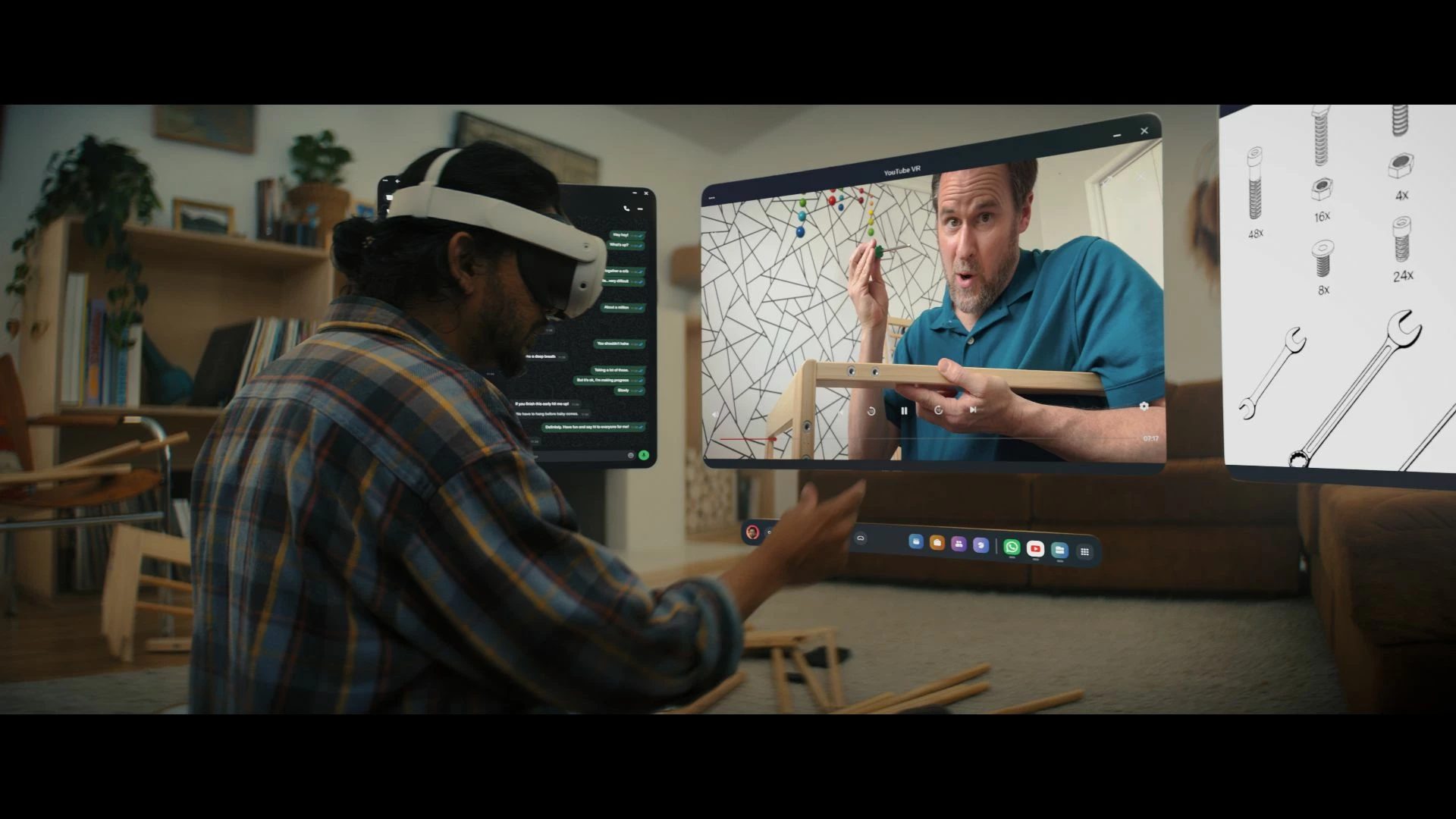
These features and enhancements are becoming available starting this week of July 8, 2024 and are pushed to Meta Quest 3, Meta Quest Pro and Meta Quest 2 headsets. Please note that you can find the most up to date release notes on our release notes article and you can check out our v67 blog as well for more details.

New window layout

 
We’re adding the ability to move windows around when you have multiple apps open in your headset. You can reposition windows anywhere. You can also watch content on a large screen by selecting the theater view on any window’s control bar.

You can find this feature under Experimental in Settings.


Creator content in Horizon Feed


We’re introducing new creator videos to Horizon Feed. You can connect with creators through reactions and sharing and jump into games and experiences directly from content in your Feed. If you are an active creator on other social networks and are interested in participating as a publisher, please let us know in the Meta Quest Community Discord.

  • This feature is rolling out gradually


Swipe Typing


We’ve added the ability to use swipe typing to enter text when using your headset. Cut down on typing by sliding your finger or cursor from letter to letter to spell words. You can turn this feature on by going to Settings, then System, then Keyboard and selecting the toggle next to Swipe Typing.


Eye tracking improvements (Quest Pro only)


We’ve made further improvements to eye tracking on Quest Pro. For the most accurate eye tracking, you can always recalibrate by going to Movement tracking in Settings, then Eye tracking and selecting Calibrate next to Calibrate eye tracking.


Do Not Disturb improvements


We’ve made a number of improvements to the Do Not Disturb setting. You can now select different durations for Do Not Disturb. You can turn this feature on from Quick settings. If you have Do Not Disturb turned on, you can also control this feature from Notifications.


Wi-Fi QR code scanner (Quest 3 only)


You can now scan a Wi-Fi QR code to connect to a valid Wi-Fi network with your Quest 3 headset. To scan a QR code, go to Wi-Fi in Settings and tap Scan QR Code.


Immersive media continuity

You can now open Quest TV or use File Viewer to watch immersive videos without quitting your current immersive app.

78 replies

New Participant
November 29, 2024

Here’s a brief overview of the new features coming to Meta Quest 3, Quest Pro, and Quest 2 starting the week of July 8, 2024:

  1. New Window Layout: Reposition app windows and enable theater view for a larger screen. Available under Experimental in Settings.
  2. Creator Content in Horizon Feed: New creator videos with the option to engage, share, and jump into games. Gradual rollout.
  3. Swipe Typing: Use swipe typing for faster text input. Enable in Settings > System > Keyboard.
  4. Eye Tracking Improvements (Quest Pro only): Enhanced eye tracking with calibration available in Settings > Movement tracking > Eye tracking.
  5. Do Not Disturb Enhancements: Set durations for DND mode from Quick settings and manage it in Notifications.
  6. Wi-Fi QR Code Scanner (Quest 3 only): Scan QR codes to easily connect to Wi-Fi networks in Settings > Wi-Fi.
  7. Immersive Media Continuity: Watch immersive media without quitting other apps using Quest TV or File Viewer.

For full release details, refer to the release notes article and the v67 blog.

Up and Coming
November 29, 2024

Hi, when will you add low latency headphones Bluetooth support as you told at meta connect please?

MetaStoreHelp
Community Manager
November 29, 2024

Hey there Dan1018! 


Thanks for reaching out! We love seeing such enthusiasm from our users about upcoming products.


At the moment, we do not have an exact date for this release, but we would recommend that you keep an eye on our website for upcoming products and promotions, here. 


See you in the Metaverse!


If you're the author of a thread, remember to mark a reply as the Accepted Solution to help others find answers!
Participant
December 6, 2024

This has been a problem for multiple users without a solid solution. Been trying to update for the last 10 hours and nothing has changed. Still stuck on software update prompt where there is an image of a lady looking into the headset. Also suggesting the user to explore the app. It says the headset will poduce a chime or sound after it is complete but that hasn't happened either.

December 6, 2024

AshSavy have you tried factory reset on being stuck on the same screen?

New Participant
January 16, 2025

Can we record using a 3rd person view point?

New Participant
January 17, 2025

b

New Participant
February 2, 2025

I don't know if it's this update, but after one of them my left controller stopped working on my 3S. It keeps failing to update and all it does is blink it's white light. It won't factory reset either. I've changed the batteries multiple times and it still only does this. I've spent the last few hours trying to get it to work and it still won't. I don't want to need to dissect my controller to get it to function. The only thing that will restart the update on it is restarting my headset and it still doesn't work. I can't play on it anymore. At this point it's just useless. 

MetaStoreHelp
Community Manager
February 2, 2025

Hi there bep.456486,

Thanks for reaching out, we see you are having an issue with your left controller here are a couple of things that may help.


First of all try taking out the batteries for 30 minutes to an hour, if you are still having issues please try unpairing and pair your controllers again.


To unpair your controllers:

  1. Make sure that your headset is turned on, then open the Meta Horizon mobile app on your phone.
  2. On your phone, open the Meta Horizon app.
  3. Tap at the top of your Horizon Feed.
  4. Tap Devices.
  5. Select the headset that you want to unpair controllers from.
  6. Tap Headset settings, then tap Controllers.
  7. Tap the controller that you want to unpair, then tap Unpair controller.

To pair your Touch controllers:

  1. Make sure that your headset is turned on, then open the Meta Horizon mobile app on your phone.
  2. On your phone, open the Meta Horizon app.
  3. Tap at the top of your Horizon Feed.
  4. Tap Devices.
  5. Select the headset that you want to pair controllers to.
  6. Tap Headset settings, then tap Controllers.
  7. Tap Pair new controller.
  8. Choose which controller you'd like to pair.
  9. Press and hold the / and buttons on your right controller or and on your left controller until the controller LED has blinked

If the issue persists please send us a private message so we can go through more troubleshooting with you.

Please select our name to get to our profile page, or click here: https://metaque.st/CommunitySupport. Next, click "Send a Message" to privately message us! Please remember, you must be signed into the community first to send us a private message.


Hope to hear back from you soon!

If you're the author of a thread, remember to mark a reply as the Accepted Solution to help others find answers!
Participant
February 2, 2025

Hi,

when can we expect the achievement system to be repaired?