

neurodivrgent
Inspiring
July 8, 2024

Meta Quest build v67 release notes
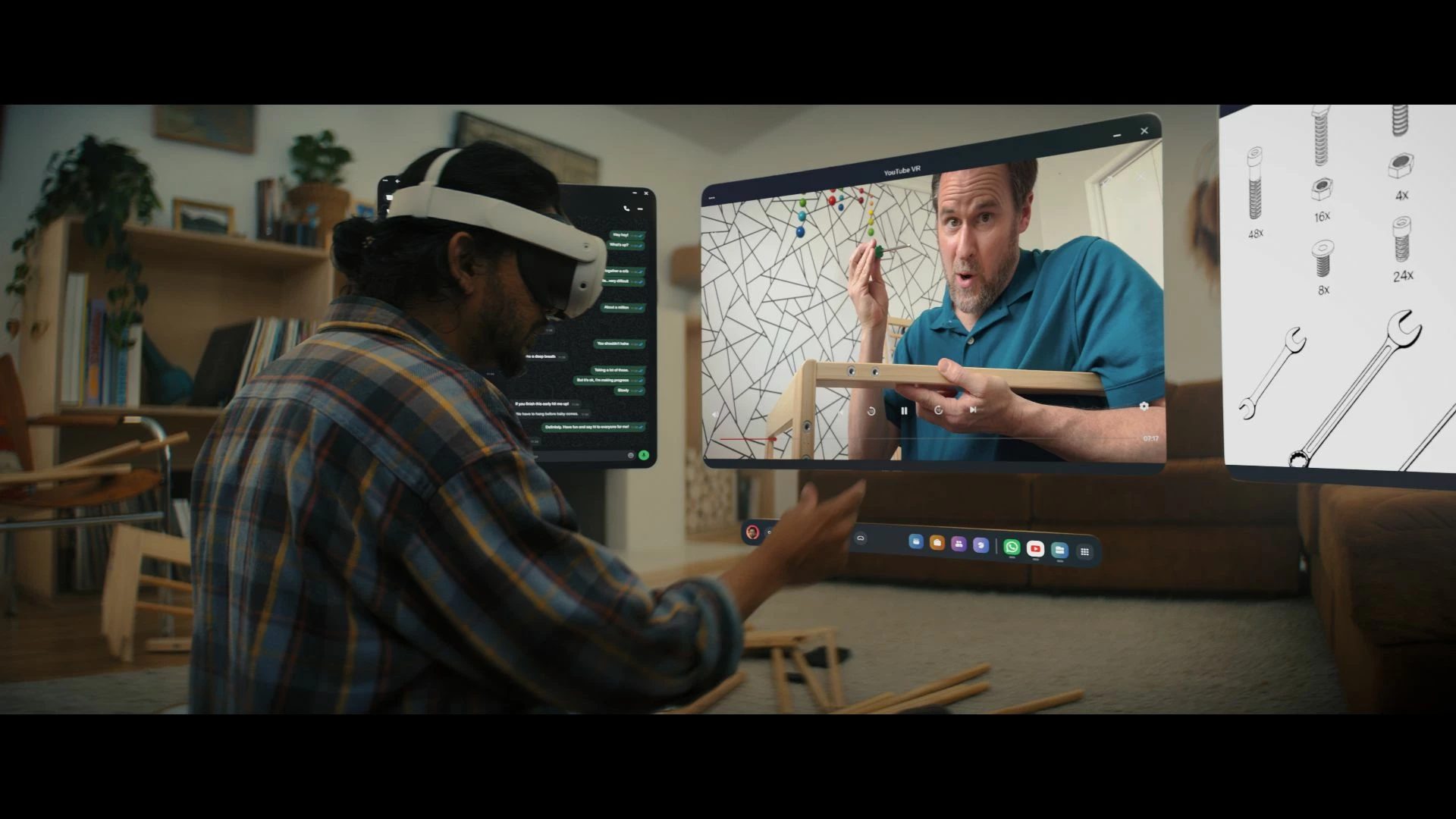
These features and enhancements are becoming available starting this week of July 8, 2024 and are pushed to Meta Quest 3, Meta Quest Pro and Meta Quest 2 headsets. Please note that you can find the most up to date release notes on our release notes article and you can check out our v67 blog as well for more details.

New window layout

 
We’re adding the ability to move windows around when you have multiple apps open in your headset. You can reposition windows anywhere. You can also watch content on a large screen by selecting the theater view on any window’s control bar.

You can find this feature under Experimental in Settings.


Creator content in Horizon Feed


We’re introducing new creator videos to Horizon Feed. You can connect with creators through reactions and sharing and jump into games and experiences directly from content in your Feed. If you are an active creator on other social networks and are interested in participating as a publisher, please let us know in the Meta Quest Community Discord.

  • This feature is rolling out gradually


Swipe Typing


We’ve added the ability to use swipe typing to enter text when using your headset. Cut down on typing by sliding your finger or cursor from letter to letter to spell words. You can turn this feature on by going to Settings, then System, then Keyboard and selecting the toggle next to Swipe Typing.


Eye tracking improvements (Quest Pro only)


We’ve made further improvements to eye tracking on Quest Pro. For the most accurate eye tracking, you can always recalibrate by going to Movement tracking in Settings, then Eye tracking and selecting Calibrate next to Calibrate eye tracking.


Do Not Disturb improvements


We’ve made a number of improvements to the Do Not Disturb setting. You can now select different durations for Do Not Disturb. You can turn this feature on from Quick settings. If you have Do Not Disturb turned on, you can also control this feature from Notifications.


Wi-Fi QR code scanner (Quest 3 only)


You can now scan a Wi-Fi QR code to connect to a valid Wi-Fi network with your Quest 3 headset. To scan a QR code, go to Wi-Fi in Settings and tap Scan QR Code.


Immersive media continuity

You can now open Quest TV or use File Viewer to watch immersive videos without quitting your current immersive app.

78 replies

MetaStoreHelp
Community Manager
July 18, 2024

Hey Artins! Just wanted to reach out to see if our last message helped at all? We hope you're having a great day!

If you're the author of a thread, remember to mark a reply as the Accepted Solution to help others find answers!
New Participant
July 19, 2024

I installed v67 and I still have the warp and I don’t have the floating windows! I checked and it’s the latest v67 version… and there’s nothing in the setting to enable. Anyone knows why? 

MetaStoreHelp
Community Manager
July 19, 2024

Thanks for jumping in to share your experience with the community! We know how important it is to make sure our devices are working properly, and we're eager to lend a hand. Since this feature should be listed under Experimental in the Settings menu, we'd like to confirm if you've already restarted your headset and ensured the Meta Quest mobile app is up-to-date on your phone.

If you're the author of a thread, remember to mark a reply as the Accepted Solution to help others find answers!
Participant
July 19, 2024

MetaStoreHelp  Thanks for your reply! Yes disabling Hand and Body tracking helps but that process is way to complicated and actually differs from not interacting while watching a movie. Hope you'll find a more direct/&clever approach. My suggestion would be a gesture for disabling interactions

Participant
July 19, 2024

RobbenB It's not a matter of the OS to handle your hands while watching...
It's a matter of the app you're using - so which one is it?

I'm using SKYBOX VR Player and in this app you can disable "in app hand tracking" at all.
Hope this helps.

MetaStoreHelp
Community Manager
July 20, 2024

We appreciate the swift and thorough reply, RobbenB! As that hand tracking feature is still experimental at this time, it may not work as seamlessly as other features. Certain apps may be able to disable that sort of feature through the in-app settings, as Buetigame mentioned; otherwise, disabling it through the headset settings when you don't want it to pop up is the best thing we can recommend to avoid that sort of issue. That said, we absolutely love to hear your insights to help improve the VR experience for the whole community, and we'd love for this amazing feedback to be shared on our Ideas page so everyone can benefit. We look forward to hearing from you there! 

If you're the author of a thread, remember to mark a reply as the Accepted Solution to help others find answers!
Participant
July 23, 2024

Buetigame Thanks for that recommendation - I'll try that player. I've used the Meta Browser to stream TV. I literally have to sit on my hands to not accidentally interrupt watching - super annoying. 

MetaStoreHelp Ok I'll suggest an idea on that issue. Let's see if it helps. 

Participant
July 23, 2024

MetaStoreHelp Tried it but does'nt work. I gave up. 

New Participant
July 24, 2024

Having better working international keyboard layouts would be more beneficial than swipe typing. You can choose some layouts for a virtual keyboard, but the selected layout is lost when the user closes the keyboard. Furthermore, a virtual keyboard is inferior to a physical keyboard when you type longer texts, but no non-English layouts are even available for Bluetooth keyboards. Text input is a fundamental part of any operating system, and the state of text input in Meta Quest is a disgrace.

Honored Contributor
July 27, 2024

On v67 but was looking at the What's New app which is still for v66.

It lists a couple new features have yet to make their way into v67 on my headset:

1. option to hide apps in the app library.

2. play audio files in the background with a suitable audio file playerand appropriate hooks in the UI to control playback. There are no audio player apps in the store and media players like Pigasus will not play in the background. So there appears to be no way to use this feature if it even exists.